
Hosted Fields - IFrames
This guide is for developers integrating a secure, PCI-compliant card payment form using Hosted Fields in an iframe.
OverviewThis guide explains how to securely collect credit card and wallet payment data using PayArc-hosted iframes embedded directly into your website. Instead of handling sensitive card data yourself, PayArc manages it within secure iframes and returns a single-use token representing the payment method. This approach reduces PCI compliance scope, improves security, and allows you to maintain full control over your checkout UI. By the end, you’ll have a working integration that generates tokens for use in charges or customer storage.
Prerequisites
Before you begin, make sure you have:
- A valid Client ID — see API Authentication
- Access to the sandbox / test environment
- A test card
Having these in place ensures you can properly associate payment methods with customer profiles.
Step 1: Understand the Hosted iFrame Model
PayArc provides iframes that render input fields (card number, expiry, CVV, etc.) inside your page. These fields are hosted by PayArc, meaning:
- Sensitive data never touches your servers
- PayArc handles PCI compliance requirements
- A token is generated and returned to your frontend
- What you get back: A secure token representing the card or wallet payment method.
Tip: The iframe blends into your UI via customizable CSS, so users never leave your site.
Step 2: Define Integration Constants
You must define the following JavaScript constants:
PAYARC_API_KEY– Your Client ID from the Merchant's dashboard API section.PAYARC_INITIAL_VALUES– Optional override of container namesFORM_STATUS– Status container identifierINITIATE_PAYMENT– Button ID that triggers tokenizationFIELDS_CONTAINER– Container holding iframe fieldsTOKEN_CALLBACK– Callback handler for responseswalletPayment– Optional config for wallet payments
Step 2.1: Configure Wallet Payments (Optional)
Only required if you want to enable your customers to use wallet payments (Apple Pay, Google Pay).
Define a walletPayment object as part of your PAYARC_SETTINGS. This enables a hosted payment window where wallet buttons are injected and managed by PayArc.
Wallet Configuration Example Code
// Code Example
const walletPayment = {
    amount: 5000, // Transaction amount in cents ($50.00)
    onTokenReceived: function(token) {
        console.log("Card Token:", token);
        // Perform further actions with the token here
    },
    onWindowOpened: function() {
        console.log("Payment window opened.");
        // You can prompt the user to continue in the opened payment window
    },
    onWindowClosed: function() {
        console.log("Payment window closed.");
        // Handle cleanup or retry logic here
    },
    windowWidth: 400,
    windowHeight: 300,
    html: "<div id='google-pay-placeholder'></div><div id='apple-pay-placeholder'></div>",
    css: "div { text-align: center; }"
};
Wallet Payment Configuration
amount (required)*
integer (value in cents)The amount parameter specifies the transaction amount to be processed for wallet payments (e.g., Apple Pay or Google Pay). It is a required field within the walletPayment object.
onTokenReceived: function(token)
Optional callback used specifically for wallet payments (Apple Pay / Google Pay).
When provided inside the walletPayment object, this function handles tokens generated from wallet payments instead of the default TOKEN_CALLBACK.
onWindowOpened: function()
Optional callback triggered when the payment window is successfully opened.
Use this to:
- Show loading indicators
- Update UI state
- Guide the user through checkout flow
onWindowClosed: function()
Triggered only when the payment window closes without generating a token.
If a token is successfully generated, onTokenReceived will handle it instead.
Use this to:
- Reset UI state
- Clean up loading indicators
- Prompt user to retry checkout
windowWidth
integer (default: 400px)Optional parameter controlling the width of the payment window.
windowHeight
integer (default: 300px)Optional parameter controlling the height of the payment window.
Custom UI Configuration
html: string
Optional HTML string used to render custom UI inside the payment window.
Placeholders (Wallet Buttons Injection)
These placeholders define where wallet payment buttons will be injected into the DOM:
Google Pay
<div id="google-pay-placeholder"></div>Apple Pay Placeholder
<div id="apple-pay-placeholder"></div>You can style these placeholders (width, height, positioning), and the system will automatically inject the payment buttons.
Allowed HTML
Tags
div, span, section, article, header, footer, aside, main, nav, p, h1–h6, strong, em, b, i, ul, ol, li, small, abbr, img, label, button, hr, brAttributes
id, class, style, title, src, alt, width, height, type, aria-*⚠️ Important
External sources are blocked due to Content Security Policy (CSP).
If images are required, they must be provided as base64 encoded strings.
css: string
Optional CSS string used to style the provided HTML.
This CSS is sanitized before rendering. Keep styles minimal to avoid rejection.
Forbidden CSS Constructs
@import@namespace@charsetjavascript:behavior:moz-binding:vbscript:content:expression()url()eval()data:text
Step 3: Add Payment Field Containers
PayArc expects predefined container elements like:
- Card number
- Expiry date
- CVV
- ZIP code
- What you get back: Secure iframe-based input fields rendered inside your layout.
Tip: Default container name is payarc-card-token-container, but it can be overridden.
Step 4: Implement Token Callback Handling
When a user submits payment:
- PayArc returns a JSON response
- Your
TOKEN_CALLBACKhandles success and error cases
Success response includes:
- Token
- First 6 and last 4 digits of card
- What you get back:
A usable payment token for backend processing.
Step 5: Customize Look and Feel
Available CSS classes:
payarc-allpayarc-inputpayarc-labelpayarc-containerpayarc-input-containerpayarc-row
Example:
.payarc-label {
  display: none;
}- What you get back: Fully styled payment fields matching your brand.
Step 6: Handle Errors
Common response codes:
200– Success403– Invalid Client ID422– Validation error (CVV, expiry, etc.)408 / 419– Session expired409– Payment gateway error- What you get back: Clear error states for user feedback and retry logic.
Step 7: Use the Demo Integration
This is a complete working implementation.
<!DOCTYPE html>
<html lang="en">
<head>
<meta charset="UTF-8">
<meta name="viewport" content="width=device-width, initial-scale=1.0">
<title>Payments Demo</title>
<style>
* {
box-sizing: border-box;
margin: 0;
padding: 0;
}
html, body {
font-family: 'Arial', sans-serif;
}
body {
background: #121744;
}
.header {
width: 100%;
display: flex;
justify-content: space-between;
align-items: center;
}
.logo-container {
display: flex;
align-items: center;
}
.logo-img {
width: 150px;
height: auto;
margin: 15px;
}
.logo-wrapper {
width: 100%;
display: flex;
justify-content: center;
padding: 1em;
}
.text-center {
text-align: center;
}
.checkout {
display: flex;
width: 100%;
justify-content: space-around;
}
/* Left Panel */
.input-panel {
width: 100%;
max-width: 250px;
padding: 15px;
background: #121744;
color: #ecf0f1;
}
::placeholder {
color: #bdc3c7;
}
.input-group label {
display: block;
font-size: 14px;
color: #bdc3c7;
margin-bottom: 5px;
}
.input-group input {
width: 100%;
padding: 7px;
font-size: 14px;
border: 1px solid #34495e;
border-radius: 4px;
background: #34495e;
color: #ecf0f1;
}
.input-group input:focus {
border-color: #419DF1;
outline: none;
}
.input-panel button {
width: 100%;
padding: 10px;
background: #419DF1;
color: #fff;
border: none;
border-radius: 4px;
font-size: 16px;
cursor: pointer;
transition: background 0.3s ease;
}
.input-panel button:hover {
background: #2f71b0;
}
/* Right Panel */
.result-panel {
width: 60%;
display: flex;
align-items: center;
justify-content: center;
max-width: 600px;
}
.result-panel .placeholder {
font-size: 16px;
color: #95a5a6;
}
.result-panel .result-content {
display: none;
font-size: 16px;
color: #121744;
width: 100%;
}
#card-token-container {
display: flex;
flex-wrap: wrap;
}
#credit-card-number {
width: 100%;
height: 65px;
}
.half-width {
width: 50%;
}
.half-width div {
width: 100%;
height: 65px;
}
#credit-card-zip {
width: 100%;
height: 65px;
}
.btn {
width: 100%;
padding: 10px;
background: #419DF1;
color: #fff;
border: none;
border-radius: 4px;
font-size: 16px;
cursor: pointer;
transition: background 0.3s ease;
margin-top: 10px;
}
.btn:hover {
background: #2f71b0;
}
.row {
display: flex;
height: auto;
min-height: calc(100vh - 66px - 15px);
margin-top: 15px;
}
.checkout-container * {
box-sizing: border-box;
}
.checkout-card {
background: #ecf0f1;
border-radius: 8px;
box-shadow: 0 4px 8px rgba(0, 0, 0, 0.1);
padding: 20px;
margin: 0 auto;
font-family: Arial, sans-serif;
}
.checkout-header {
text-align: center;
margin-bottom: 20px;
}
.checkout-item {
display: flex;
justify-content: space-between;
margin-bottom: 20px;
border-bottom: 1px solid #bdc3c7;
padding-bottom: 10px;
}
.checkout-payment-methods {
display: flex;
flex-direction: column;
gap: 10px;
}
.checkout-btn {
width: 100%;
padding: 10px;
background: #419DF1;
color: #fff;
border: none;
border-radius: 4px;
font-size: 16px;
cursor: pointer;
transition: background 0.3s ease;
}
.checkout-btn:hover {
background: #2f71b0;
}
.checkout-btn-card {
background: #34495e;
}
.checkout-btn-card:hover {
background: #121744;
}
#paypal-button-container {
width: 100%;
display: flex;
justify-content: center;
}
</style>
<style id="payarc-styles">
/*if you want to override look and fill of payarc iframes update styles below*/
/*using the exact same style name*/
/*example styles:*/
.payarc-all {
box-sizing: border-box;
}
.payarc-input {
width: 100%;
padding: 12px;
border-radius: 4px;
resize: vertical;
}
.payarc-label {
display: none;
}
.payarc-input:hover {
background-color: lightblue;
}
.payarc-container {
border-radius: 5px;
/*background-color: #f2f2f2;*/
background-color: transparent;
/*padding: 20px;*/
}
.payarc-label-container {
float: left;
width: 25%;
}
.payarc-input-container {
float: left;
width: 55%;
margin-top: 6px;
}
.payarc-row:after {
content: "";
display: table;
clear: both;
}
.payarc-input-default {
color: black;
font-size: 14px;
border-style: solid;
border-width: 1px;
border-color: gray;
}
.payarc-input-success {
color: #5cb85c;
font-size: 14px;
border-style: solid;
border-width: 1px;
border-color: #5cb85c;
}
.payarc-input-error {
color: #d9534f;
font-size: 14px;
border-style: solid;
border-width: 1px;
border-color: #d9534f;
}
</style>
<script src="https://testportal.payarc.net/js/iframeprocess.js" defer></script>
<script src="https://code.jquery.com/jquery-3.7.1.min.js" integrity="sha256-/JqT3SQfawRcv/BIHPThkBvs0OEvtFFmqPF/lYI/Cxo=" crossorigin="anonymous"></script>
</head>
<body>
<div class="header">
<div class="logo-container">
<img class="logo-img" src="https://payarc.com/wp-content/uploads/2024/01/payarc-logo-white-1-300x71.png" alt="PayArc Logo">
</div>
<div class="input-panel">
<div class="input-group">
<input type="text" id="clientId" class="saved" placeholder="Enter Your Client ID">
</div>
</div>
</div>
<div class="row">
<div class="checkout">
<div class="result-panel">
<div class="placeholder">Waiting for Client ID...</div>
<div class="result-content">
<div class="checkout-container">
<div class="checkout-card">
<div class="checkout-header">
<h2>Example Checkout</h2>
</div>
<div class="checkout-item">
<span>Total</span>
<span>$2.00</span>
</div>
<div class="checkout-payment-methods">
<div id="card-token-container">
<div id="credit-card-number" data-payarc="CARD_NUMBER" data-placeholder="Card Number"></div>
<div class="half-width">
<div id="credit-card-exp" data-payarc="EXP" data-placeholder="MM/YY"></div>
</div>
<div class="half-width">
<div id="credit-card-cvv" data-payarc="CVV" data-placeholder="CVV"></div>
</div>
<div id="credit-card-zip" data-payarc="ZIP" data-placeholder="ZIP Code"></div>
</div>
<button class="btn" id="initiate-payment">Buy</button>
<div class="text-center">Prefer a wallet payment? Select one below.</div>
<button class="checkout-btn apple-pay-button" style="background: #000; color: #fff; display: none;" data-payarc-wallet="apple-pay">Apple Pay</button>
<button class="checkout-btn" style="background: #4285F4; color: #fff;" data-payarc-wallet="google-pay">Google Pay</button>
<div id="paypal-button-container"></div>
</div>
</div>
</div>
</div>
</div>
</div>
</div>
<script>
const storage = JSON.parse(localStorage.getItem('iframe-demo') || '{}');
storage['html'] = `
<div class="bg-color">
<div class="logo-container">
<img
class="logo-img"
src="data:image/png;base64,iVBORw0KGgoAAAANSUhEUgAAASwAAABHCAMAAACK54pqAAAASFBMVEVHcEz///////////////////////////////////////////////////////////////////////////////////////////8FevL4AAAAF3RSTlMA2QII8voYEcXnKLs1rZ7Rih5Ed1Jfaybo/FAAAAn1SURBVHja7VvXtqwoEFUQEQlm/f8/HVO3UlWo9Jl715w1zQ0PNhI2u4pKJtNVy1ThRiOT68ak6VyhxN6dbw/zuTXHP7b0856sz9BY4DWvjyxHp1U2CVXZ7rUsMChH4/DT6E1f6zQTQg2MmLqdh0/nfUwqnTfS5gx2mu5altqe2tYxx2DnDRzdXbssL3fFubk8SfjoPSpsiUfLrd+n5seR9C6d5xHbPGJe1gpX5/XX+5jyPb2uW/mCaizUvswO7oK3nT5tYyVK18pIsJb3dB9klxx09trAvg1VlyzJK2+Iqpn79pk/bofOgA1+l+zNAN5bBZdlFxY7/1m5vXCeXtXNOkKr34MLAJZsnRJ448r6G58eNeVKklzMuIzoXrWcAktqv1uRI+jthF9bSVErYp50lD5YIjP7QOn5aS1n6gznRx5Y3DgV2rhteSxYkyhaAi3eF4E5hoYAC/GmhwO2/qJFt6kNZrSgOd9JJ3xmJYhZ83LaWQd4Q5/BkmMqwhtPu+NI1UO0prRHaPEh+LbqCLASgODkOBiwBnNufOZtFdQQHc0sQOya98o/hZPOJYXj1PeQqmr6GK0Zq/CJqIwAi3Wgk/FHLMFq6lVjsLa6urBJneWJ4TRpU/lLPcAqrRA3O9dm37kTj9Gq/K2xNp2ev7spH5NCMfNGHP3FzNKzPC2Lq3OfnjCrgtvs3saEfgDA645t1fMd68ajQTFFg8XBogtvRHgBWLlZE8/PM6CzpgxI2lsMnw0u7L78+vlSRH3SMTyCk8e1Bs7GU/GspfQ/H7Pn04SYhVqXRO1+3zkr9fO1KHOITZ99AhYHtoGTZ/gpy8JECHtQZ4XAerwJ1e/XcvF81/ZNrVzH7OEwmHoRVPFQoY2LixTD/OfM2sSQNUWsCmKlU08XlLWvnQ3ZR2AlOVhfd/gznb+KdH3FqCmOWRFiyGJU0LB7itzURapgI29Ux2hT+3WPqwCv32DBG+/4AcAoakZYXttPIjRPnM4qU8IGLay1BWGlvt0NxmRTlqXx/prOYvao/eQM8ZMd2vm92a0WF2AlTQq8v0MJEgLaVISn2rWlMX1N2d2Ub4igntsKVod+0kMpFzTKAVkUynM3GPjLZk8cXaxi3DojAm9e7fzSItbZBbNYDW5lubv9luAwg7737Hf1ewyI8hdvmCVSW4+9aU1vqD6qk2wDYv6xgzPX/CZSlSNQLKMsosVJO11r+LY/mAW10EvFg8fZ6osyaJ8I11yaxVc6K9ND/gZjMWMEdGjPJjIHKhTYhGRcD6K1qd0SnGnmwc4YQusEFrAQXiYMmEhz6jqYnBeo4NCkvmJWOvjUABSfz9v/HVJdtckdWvB2FaupBQyA3dYOm0zesbTi3scW/Xr5wLuwApEiDoUlrLMqA8RIgp1pGDACejkbk1u0oNYYCZUFQWdol1oGvZpNxQMuVltwFky+ml5+ZLV4xiyhUIgJSEcGI82zFq28dg9WAqlVr+43IBaK4jF3cWyDQLSEpshuYUPTCwWioXEW0lmiQ+q5vRs7kTI/N5mYdytpbQ9F2y7s11MgOhQC5MwsuJOZlwwon7Qh53Ych2rVI2YRUAzXmoRqYtr/CGVbMnQMbHWNxT0jXgRy6CuEDl7K0Pas+Taiuz0UoOtCOstxtMSOkJibFr47A6HegqMVKiJNA2xPj1kMqIuqBLb0zg9oe+EwNJTfELMO0zckMWKMBGtKDdEDcKSSj8ACq9WSeRrND5yPwAd6+evwKiAYDPGkddY5XPJqgLVDLFgkFymwUv+mKQlztroQQwZu5aKiGQSRwJYOIF+IWSlhUP4YrAKLNhJDhs8tUgyxwQdWIQNg4ZwJvEYDOqvK8QrrG6vkFizi0qAUfF7cnThS8B5YDPt85za8u8Uq+BCzcIYSJU/qaLAE3jZ/YjqwW9MhB1J6EXY7ycyt6YBcyvIpWJ+YDtMdvpRRikxONBG/6QHDWiiQRccDb41S9Ryse6N0CVudWg7BQq/ALPK0mhfQ3elvDhzchnTgjdCAt+4OPMr0OVjQ3UG2g9QqO/1RHUrfQ2rBfIZYlQJypIGUodQP8lKDIV1xljXsSENiZZ+CxXhxlegjkk0jAgv4k0SIhhEhGuFHxnBACwtqKLju3RZQtQn/VFifTh8ziwjRsKsspjIILKHOYZ+mzqj8DkPBP3Uqn4BFGCRYDEVxXpFdfnG7TNkp+McwVu/L4QlYgDmTt3OcVioaoopG1a/iPYnDylM4rNxyFi7g0Xi1tPUAHBOURBK639UfLzsc7Y9hFhFWflftMUyTWXjISLUbW2Pazqqg9iWy/qld3xodlUjAYohD09S2qISF7fp5nqGuiHliwII36RJ4Hsucc5mbDpk2S8wukKtUgWST27Nn5E7FkkGjrU10GwZSj9DuJHOsF/NEgEXeyFmqnbOaSFAtshGVwvw8yUqIIcUabLpEJlkjdNaSaKKTj7R6YLFgHWZuZPqeEMMEi8HZIA2p+BuwYphFHtdV+j5qKadYO+vVT8Eiaj6UwaHQ9M+BlQxPN7EVhsSsxLOmZFTJESWGRNWSxVEPlMD5N8GKLDmKosfnxWwks9CdqohQaFwxW4zO2iI8z4rZ8iQSrNQPNxIm4RVY7MF1RENqij/GrFltPSmTLPYoGdD5F5RPew597AuJByORYghDD4E05mUBrsh+BtZSgHvHq3cBLoAwLMMIq6VcOcitrK7uOQM9vypQTXCBVub0D8FKmpvS7syVdDxLy5p+M/TRQEWDq8bmAVj3n6e8r8TQRwN1Y3+ks24/GlhKawLBP704wYJEN+ZzlHTgTXUrhjAQT+aW3h69ojcCYvAfMOvyc5StkooES+iF86iGLdM9D3/oVKDuzhCpsNu7ULiLAqilVgwva/bd+b8A1vKhE1WCJ5T1Nz6hbEQi+/ObQrk+P4qaCM0z+N3t6RM6Xez/1xgsWHt1XdLD1k/ozvPoQa6WkjfPK961f0L3eu5uA+zc1L5HKFTRwcIbAqz5GM3odJWmaaHrvuSXeQ82dy+HWldz/0q7YS+ZYLPzzqWU2/8Sj8Gg3WD5bUVP2de2WOY5fQRKz8O4PD+/HXohgzTDNvw8vq17Ixn8OpMCa4M6b5pm6X+fIlpqI5lcunPv4XUDqaisfzDTEmSb58nP2LPQ5j9oM8bLtnNJbxvprA9b9OJg6K3IWfJfb0Fm/ekGEouPMsL/V7Bg9LAqky9YoQayBaJmvw0s8dfAgrkdZZIvs0INRosd/4IVvDtBvU/WJl+wgq5eepn+/+qsq0DWwL7MCtoNBcyMf8EKNlCEQ1T0f8EKBrLK5BeC9Xd0FqxVvv2S7//MLFhkqdrkC1aowUCWk1+wgsRCgazkV4L1V3QWDGTpPPkyK9QGmFllX7BCQsh/YyBrb9Zr3V9wC50/5S8i1j8iIVakUYw8iwAAAABJRU5ErkJggg=="
alt="PayArc Logo"
>
</div>
<div class="ant-checkout-container">
<div class="center-align">
<div class="ant-checkout-card">
<div class="ant-checkout-header">
<h2>Checkout</h2>
</div>
<div class="ant-checkout-item">
<span>Total</span>
<span>$2.00</span>
</div>
<div class="ant-checkout-payment-methods">
<div id='apple-pay-placeholder'></div>
<div id='google-pay-placeholder'></div>
</div>
</div>
</div>
</div>
</div>
`;
storage['css'] = `
.ant-checkout-container * {
box-sizing: border-box;
}
.ant-checkout-card {
width: 50%;
background: #ecf0f1;
border-radius: 8px;
box-shadow: 0 4px 8px rgba(0, 0, 0, 0.1);
padding: 20px;
margin: 0 auto;
font-family: Arial, sans-serif;
}
.ant-checkout-header {
text-align: center;
margin-bottom: 20px;
}
.ant-checkout-item {
display: flex;
justify-content: space-between;
margin-bottom: 20px;
border-bottom: 1px solid #bdc3c7;
padding-bottom: 10px;
}
.ant-checkout-payment-methods {
display: flex;
flex-direction: column;
gap: 10px;
}
.ant-checkout-btn {
width: 100%;
padding: 10px;
background: #419DF1;
color: #fff;
border: none;
border-radius: 4px;
font-size: 16px;
cursor: pointer;
transition: background 0.3s ease;
}
.ant-checkout-btn:hover {
background: #2f71b0;
}
.ant-checkout-btn-card {
background: #34495e;
}
.ant-checkout-btn-card:hover {
background: #2c3e50;
}
.center-align {
display: flex;
justify-content: center;
align-items: center;
min-height: calc(100vh - 90px);
}
.logo-container {
display: flex;
justify-content: center;
align-items: center;
height: 70px;
padding: 10px;
}
.logo-img {
width: 150px;
height: auto;
}
.bg-color {
background: #121744;
}
#apple-pay-placeholder {
width: 100% !important;
}
`;
if (window.ApplePaySession) {
$('.apple-pay-button').show();
}
let PAYARC_SETTINGS = {
FORM_STATUS: 'form-status',
INITIATE_PAYMENT: 'initiate-payment',
FIELDS_CONTAINER: 'card-token-container',
TOKEN_CALLBACK: {
success: (obj) => {
const response = JSON.parse(obj.response);
document.getElementById('card-token').textContent = response.token;
console.log('Tokenization successful!', response.token);
},
error: (obj) => {
alert(`ERROR: ${obj.status} - ${obj.statusText}`);
if (![422, 409].includes(obj.status)) {
alert('Payment gateway error. Please try again.');
}
},
paymentWindowClosed: () => {
console.log('Payment window closed, needs to be handled.')
}
},
walletPayment: {
amount: 200,
html: storage['html'],
css: storage['css'],
onWindowOpened: () => {
$('.placeholder').html('Waiting for payment...').show();
$('.result-content').hide();
},
onWindowClosed: () => {
console.log('Payment window closed');
$('.placeholder').hide();
$('.result-content').show();
},
onTokenReceived: (token) => {
$('.placeholder').html('Payment token: ' + token).show();
$('.result-content').hide();
},
windowWidth: 600,
windowHeight: 450
}
};
$('.saved').on('change', function() {
storage[this.id] = this.value;
localStorage.setItem('iframe-demo', JSON.stringify(storage));
});
//load storage on page load
$(document).ready(function() {
for (let key in storage) {
$('#' + key).val(storage[key]);
if (key === 'clientId' && storage[key]) {
$('#clientId').trigger('change');
}
}
});
//wait for input (not keyup)
$('#clientId').on('change', function() {
storage['clientId'] = this.value;
localStorage.setItem('iframe-demo', JSON.stringify(storage));
if (!this.value) {
return;
}
const placeholder = $('.placeholder');
const resultContent = $('.result-content');
placeholder.hide();
resultContent.show();
initPayarcTokenizer(this.value, PAYARC_SETTINGS);
});
$('#initiate-payment').click(function() {
getPayarcToken(this);
});
</script>
</body>
</html>- What you get back: A fully functional tokenization demo.
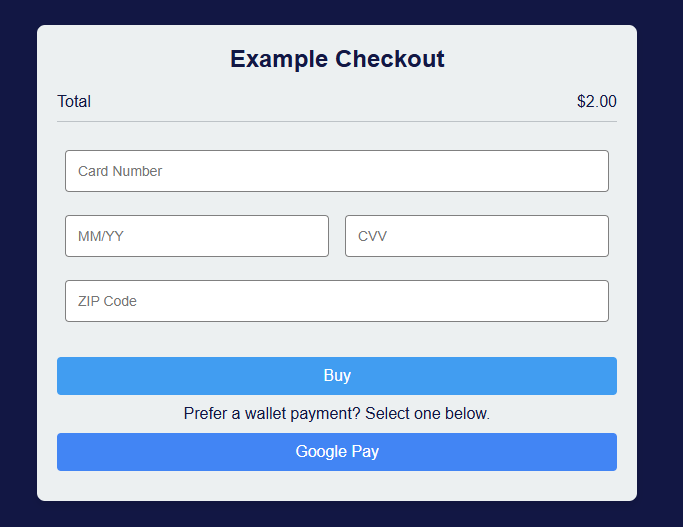
Step 8: Run the Demo (Step-by-Step)
Validates your integration.
Setup
- Copy demo code into
.htmlfile - Open using Live Server (or equivalent)
Run
- Enter Client ID
- Fill test card data
- Click Buy
Retrieve Token
- Open DevTools → Network
- Find
get-tokenrequest - Inspect response
- What you get back: A live token from PayArc.
Step 9: Use the Generated Token
You can now:
- Create a charge
- Attach token to a customer
Important: Tokens are single-use. Use Customer ID for future transactions instead.
Questions and Answers
- Can I hide labels? Yes — set
.payarc-label { display: none; } - What is
payarcInitiatePaymentObject? An internal object holding entered values. - Do I need a container? Yes — default is
payarc-card-token-container.
Updated 3 months ago
What’s Next
Now that you've implemented hosted fields and wallet tokenization, you can: